> For the complete documentation index, see [llms.txt](https://sharelink-docs.toss.im/llms.txt). Markdown versions of documentation pages are available by appending `.md` to page URLs; this page is available as [Markdown](https://sharelink-docs.toss.im/start/channels.md).
# 크리에이터명과 채널 등록하기
쉐어링크 가입 후 **크리에이터명 1개와 실제로 공유하는 채널 주소 1개 이상**을 등록해 주세요.
### 여기에서 등록해요
{% @toss-shopping-sharelink-app-link/sharelink-app-link %}
* **PC:** 내 정보의 **활동 정보 → 수정**을 눌러요.
* **토스 앱:** 위 버튼으로 활동 정보 화면을 열어요. 앱에서 직접 찾으려면 **내 쇼핑 → 쉐어링크 → 오른쪽 위 내 정보 → 활동 정보**를 눌러요.
### 등록할 주소를 준비해요
**SNS에는 내 프로필·채널로 바로 연결되는 전체 주소를 넣어 주세요.** 플랫폼 홈페이지나 다른 사람의 주소를 넣지 마세요.
* 유튜브: `https://www.youtube.com/@내채널아이디`
* 인스타그램: `https://www.instagram.com/내아이디/`
위 주소는 형식 예시예요. 내 프로필에서 실제 주소를 복사하고, 직접 열어 정확히 연결되는지 확인해 주세요.
카카오톡으로 지인에게만 공유해요
공개 채널 주소가 없다면 **아래 카카오톡 공식 다운로드 주소를 복사해 등록해 주세요.** 카카오톡으로 지인에게만 공유하는 경우의 예외예요.
```
https://play.google.com/store/apps/details?id=com.kakao.talk
```
[카카오톡 공식 Google Play 페이지 확인하기](https://play.google.com/store/apps/details?id=com.kakao.talk)
주소를 붙여넣은 뒤 아래 웹·앱 순서에 따라 **채널 추가와 마지막 저장까지** 완료해 주세요. SNS에서도 공유한다면 해당 SNS의 내 프로필·채널 주소도 함께 등록해 주세요.
### 웹에서 등록·수정하기
{% stepper %}
{% step %}
### 크리에이터명을 입력해요
크리에이터명을 **30자 이내**로 입력해요. 여러 이름으로 활동한다면 대표 이름 하나를 정해 주세요.
{% endstep %}
{% step %}
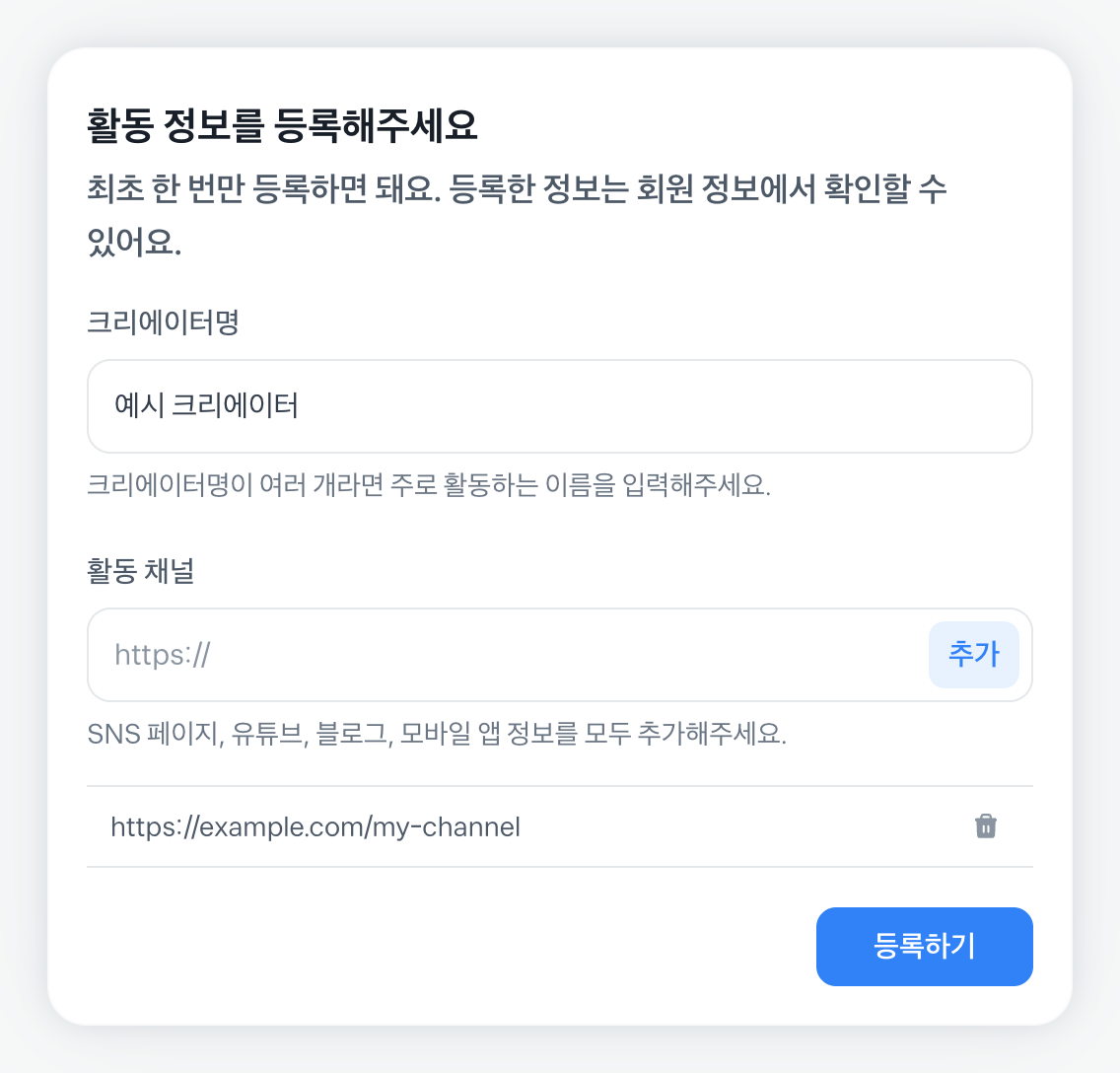
### 채널을 목록에 추가해요
활동 채널 주소를 입력하고 **추가**를 눌러요. 여러 채널을 등록할 수 있어요. 쉐어링크를 공유하는 채널을 한 개씩 추가해 주세요. 입력만 하면 목록에 들어가지 않아요.
활동 정보 입력 예시 · 웹 화면이며, 입력값은 안내용 예시예요.
{% endstep %}
{% step %}
### 등록·수정 내용을 저장해요
목록에 필요한 채널이 모두 들어 있는지 확인하고 **등록하기** 또는 **수정하기**를 눌러 저장해요.
{% endstep %}
{% endstepper %}
### 토스 앱에서 등록·수정하기
{% stepper %}
{% step %}
### 이름을 확인하고 다음을 눌러요
크리에이터명을 입력하고 **다음**을 눌러요. 이미 등록했다면 현재 이름을 확인하거나 수정해요. 이름은 **30자 이내**로 입력해 주세요.
{% endstep %}
{% step %}
### 채널을 목록에 추가해요
활동 채널 주소를 입력하고 **채널 추가**를 눌러요. 여러 채널을 등록하려면 주소마다 반복해 주세요.
{% endstep %}
{% step %}
### ‘제출’을 눌러 저장해요
채널이 **1개 이상** 목록에 들어 있는지 확인하고 **제출**을 눌러요. **‘활동 정보를 저장했어요.’** 안내가 나오면 완료예요.
{% endstep %}
{% endstepper %}
채널이 추가·변경되면 같은 화면에서 수정하고, 더 이상 사용하지 않는 채널은 삭제해 주세요. 잘못되거나 오래된 정보로 실제 활동 채널을 확인할 수 없으면 **쉐어링크 이용 계약이 해지될 수 있어요.**
#### 등록이 안 되나요? 채널을 추가했는데 저장 버튼이 안 눌려요
크리에이터명과, 목록에 추가한 채널 1개 이상이 모두 있어야 저장할 수 있어요. 주소를 입력한 뒤 웹에서는 **추가**, 앱에서는 **채널 추가**를 눌러 목록에 넣었는지 확인해 주세요.
‘올바른 URL을 입력해주세요’라고 나와요
채널 이름이나 아이디만 입력하지 말고, 위 주의사항에 맞는 전체 주소를 넣어 주세요. http 또는 https로 시작하는 웹 주소인지, 오타가 없는지 확인해요.
‘이미 추가된 URL이에요’라고 나와요
아래 채널 목록에 같은 주소가 있는지 확인해 주세요. 이미 추가된 주소는 다시 추가할 필요가 없어요.
저장했다면 활동 정보 등록이 끝났어요. 이제 소개할 상품을 고르고 첫 링크를 만들어 보세요.
링크 만들고 공유하기채널 등록 중 문제 해결하기
---
# Agent Instructions
This documentation is published with GitBook. GitBook is the documentation platform designed so that both humans and AI agents can read, navigate, and reason over technical content effectively. Learn more at gitbook.com.
## Querying This Documentation
If you need additional information that is not directly available in this page, you can query the documentation by asking a question.
Perform an HTTP GET request on the following URL with the `ask` and `goal` query parameters:
```
GET https://sharelink-docs.toss.im/start/channels.md?ask=&goal=
```
`ask` is the immediate question: it should be specific, self-contained, and written in natural language.
`goal` is what the user is ultimately trying to achieve, the reason they need the answer. Sharing it helps GitBook give you a better, more relevant answer. A goal is most helpful when it describes the outcome the user wants rather than restating the question. For example, with `ask=how do I create an API token`, a goal like `automate deployments from our CI pipeline` lets GitBook tailor the answer to that use case.
The response will contain a direct answer to the question and relevant excerpts and sources from the documentation.
Use this mechanism when the answer is not explicitly present in the current page, you need clarification or additional context, or you want to retrieve related documentation sections.